FB Name Changer Emoji
- Flutter
- Dart
- Android
- Supabase
- Paymongo
About this Project
FB Name Changer Emoji is a specialized utility tool designed to bypass standard social media character restrictions by leveraging a specific profile synchronization mechanism to embed emojis into Facebook display names. The platform operates on a secure token-based architecture, where users purchase and redeem digital credits to access the renaming script and execute the "sync glitch." This system ensures a controlled usage environment, where every successful name change is accounted for through the deduction of pre-purchased tokens, streamlining the monetization and user management process.
Status Update (Dec 13): This method is currently active and working. It will remain functional until Facebook patches the specific synchronization glitch on their servers.
Key Features
- Easy name customization
- Emoji support
- User-friendly interface
- Token system
What I Learned
- Implementing secure token-based architecture
- Integrating PayMongo for payment processing
- Managing state with Supabase real-time subscriptions
- Optimizing Flutter webview performance
How to Use FB Name Changer
Step 1
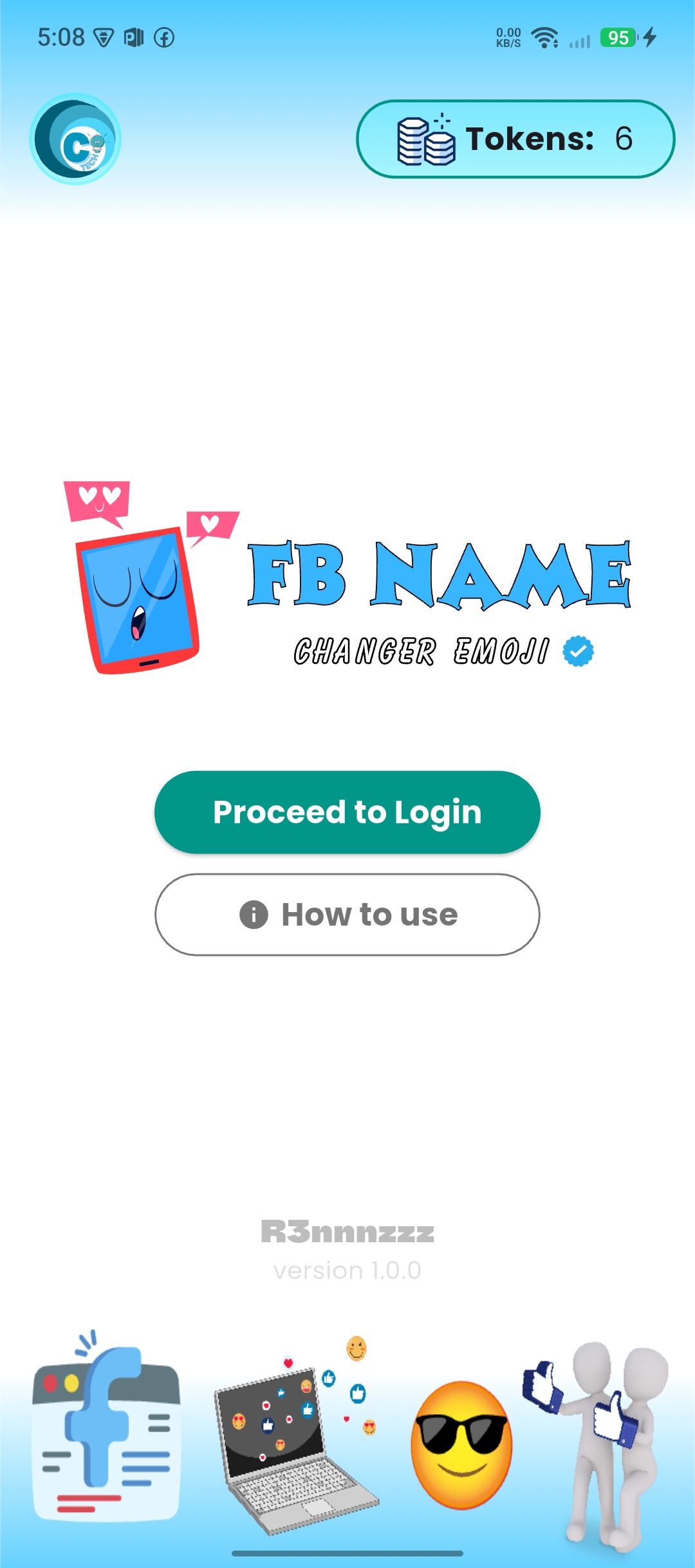
Click Proceed to Login
Step 2
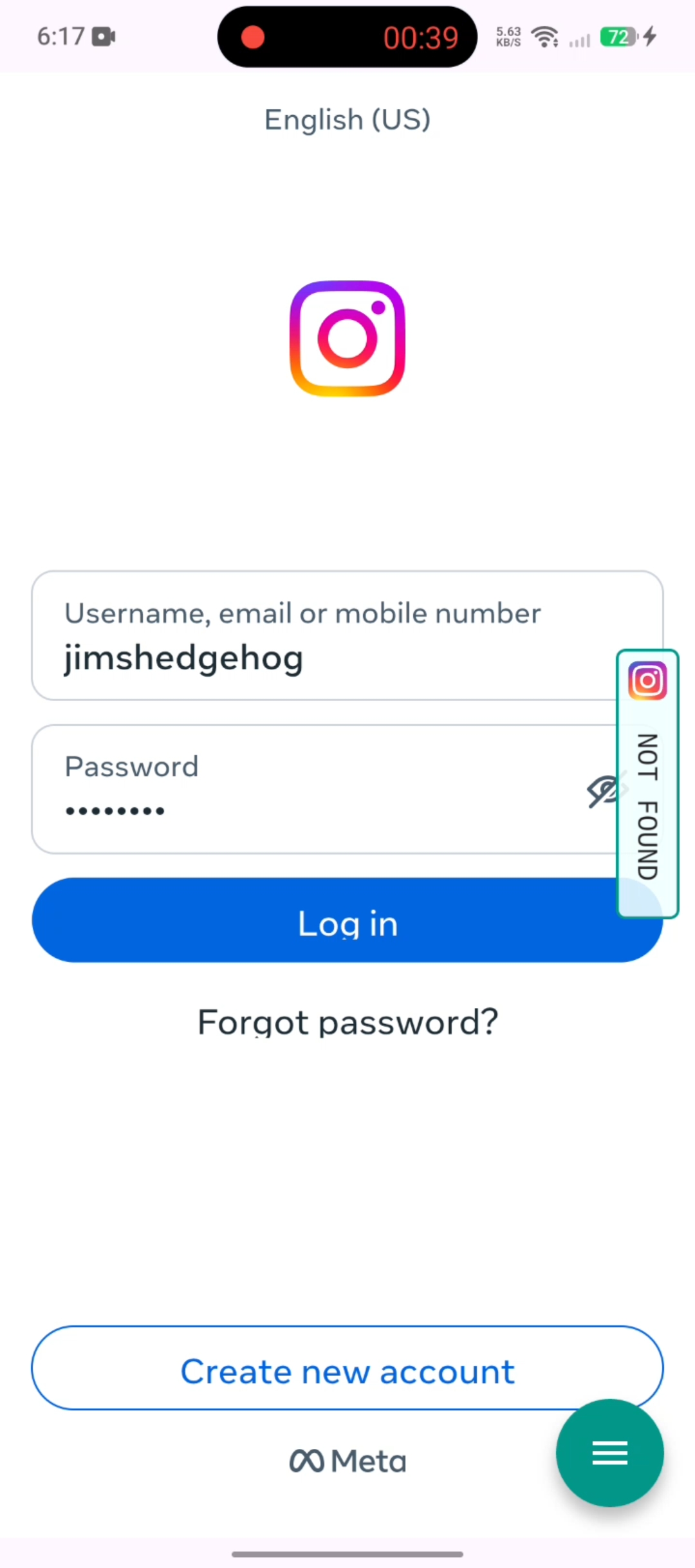
Login to your Instagram Account
Step 3
After logged in, you will be redirected here. Click your Instagram profile
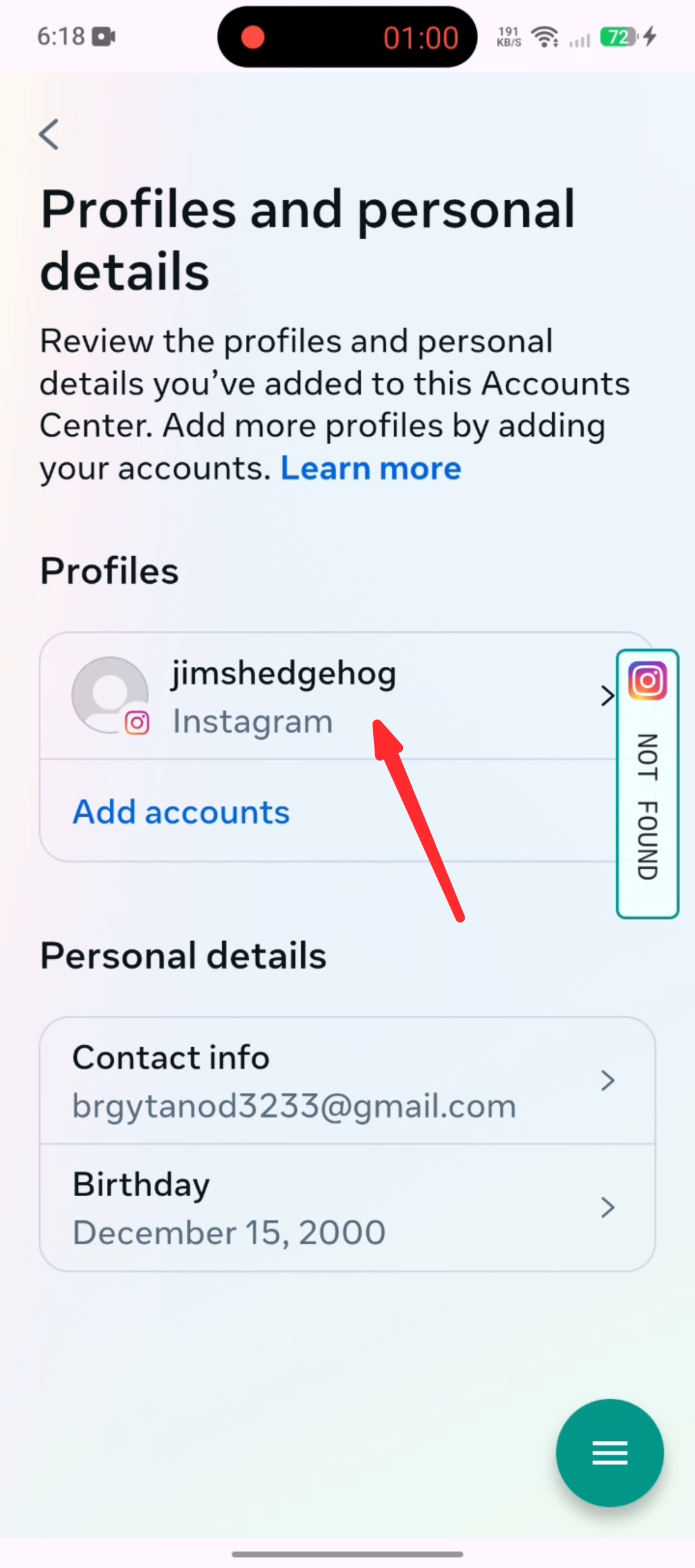
Step 4
Wait a moment for your Instagram UID to be displayed
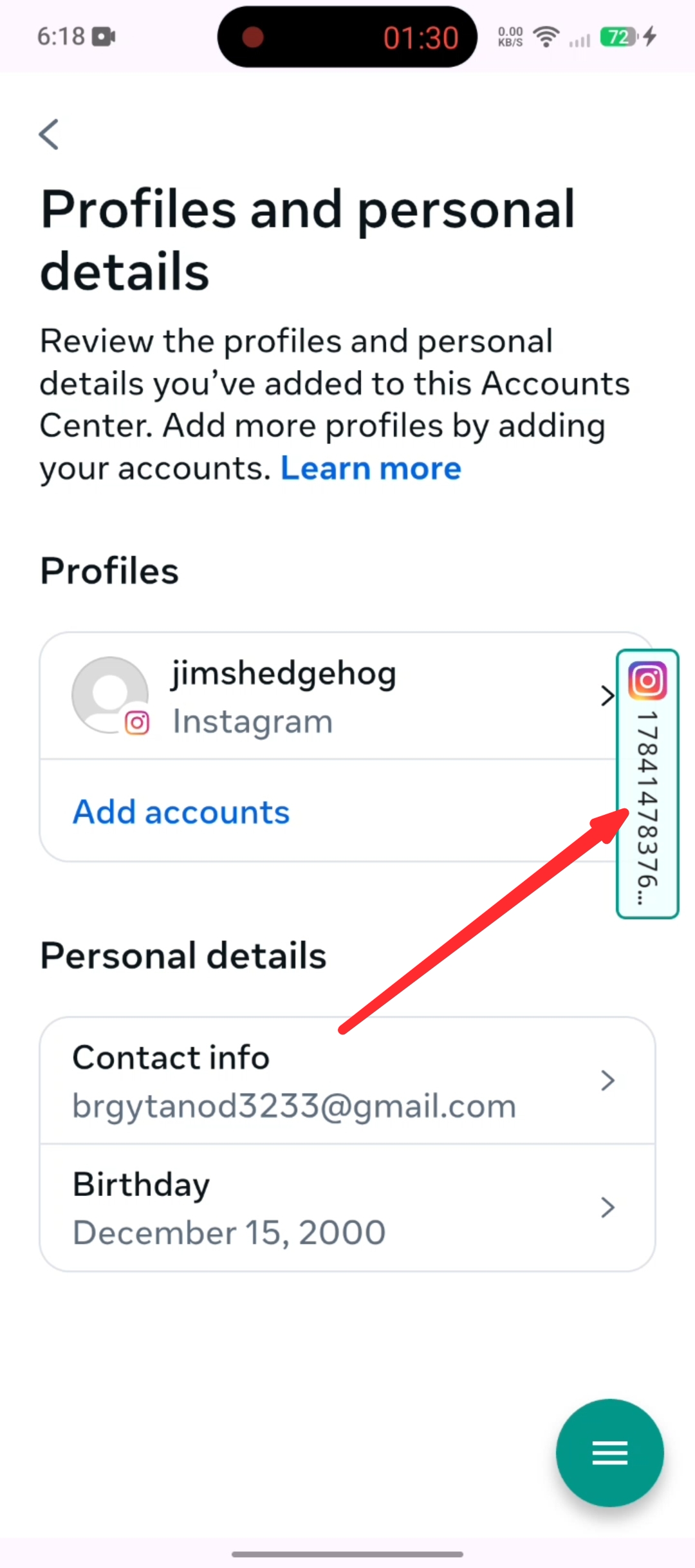
Step 5
Click the FAB menu icon
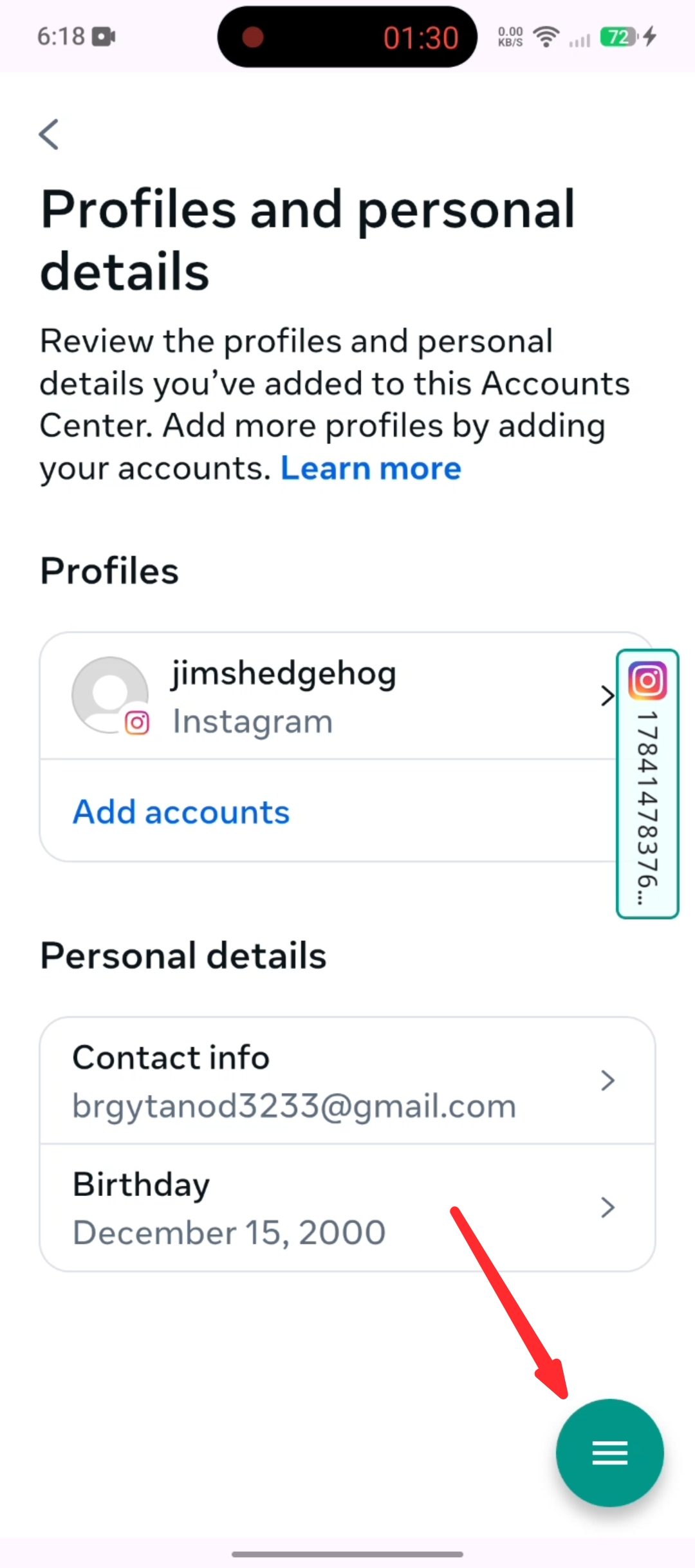
Step 6
Click Login with Facebook
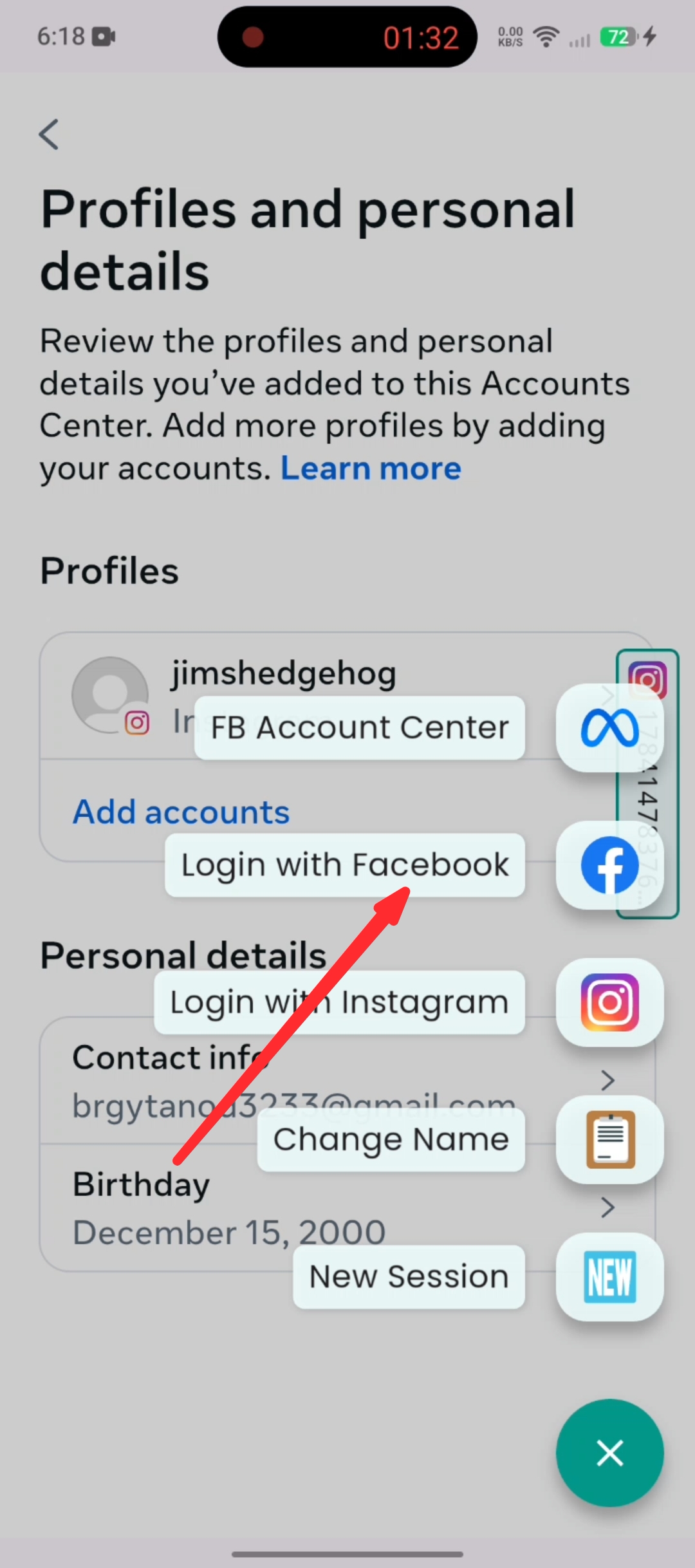
Step 7
Log in to your Facebook account
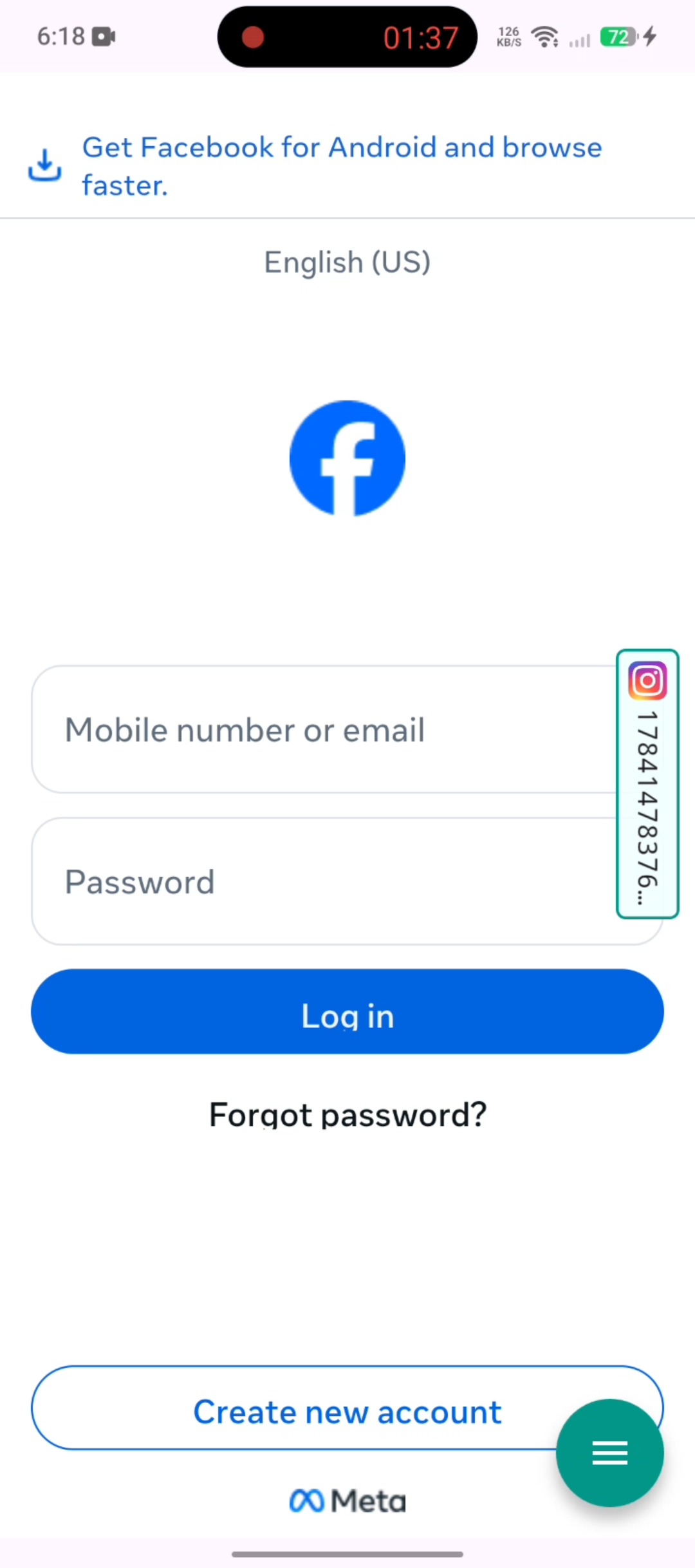
Step 8
After logging in, click again the FAB menu icon
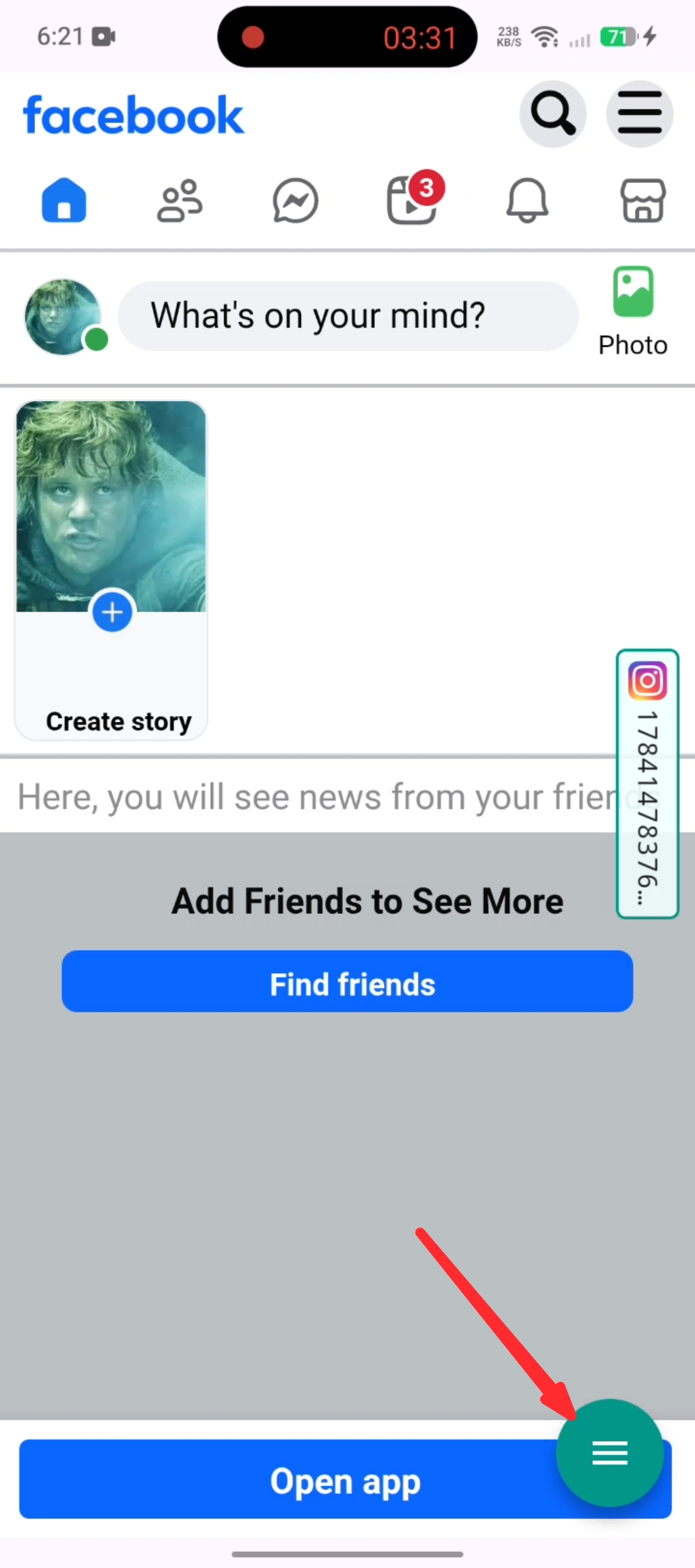
Step 9
Click FB Account Center
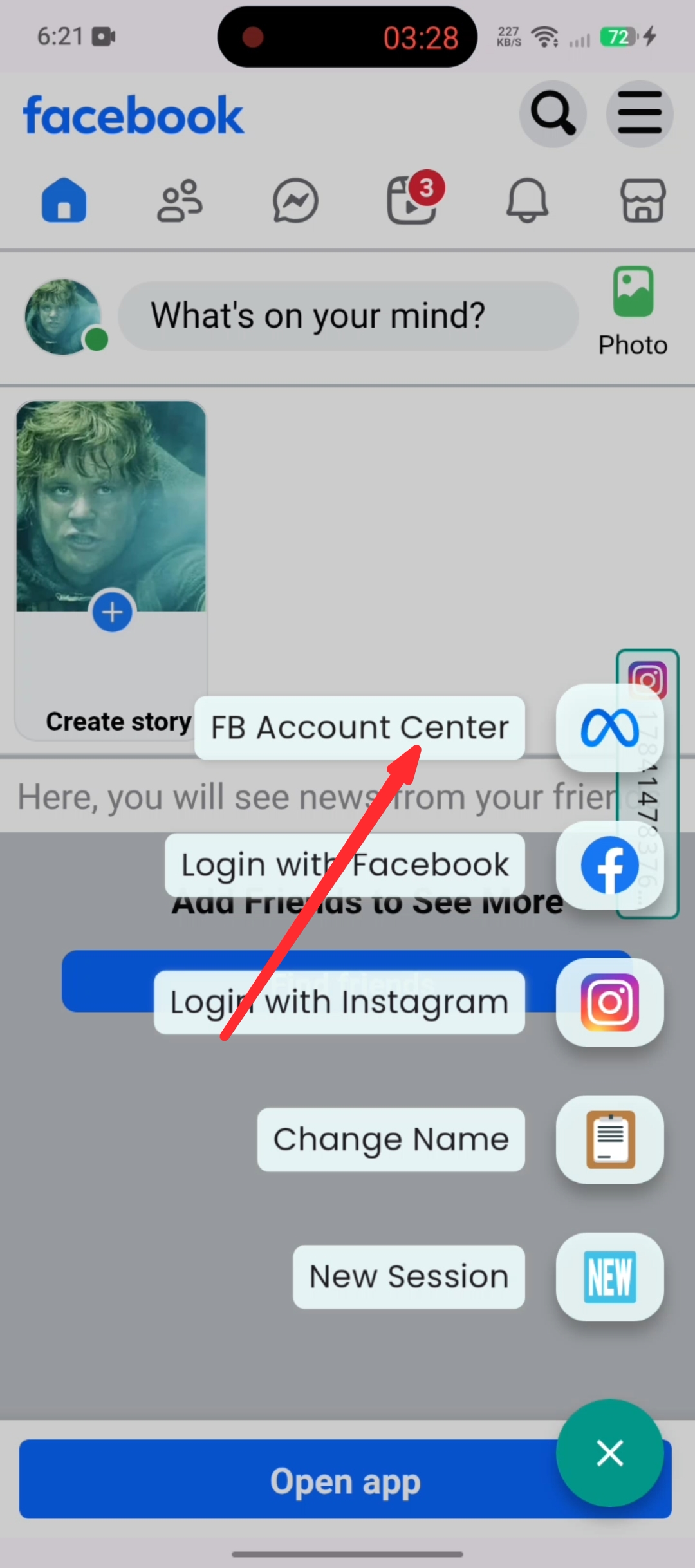
Step 10
Click Add accounts
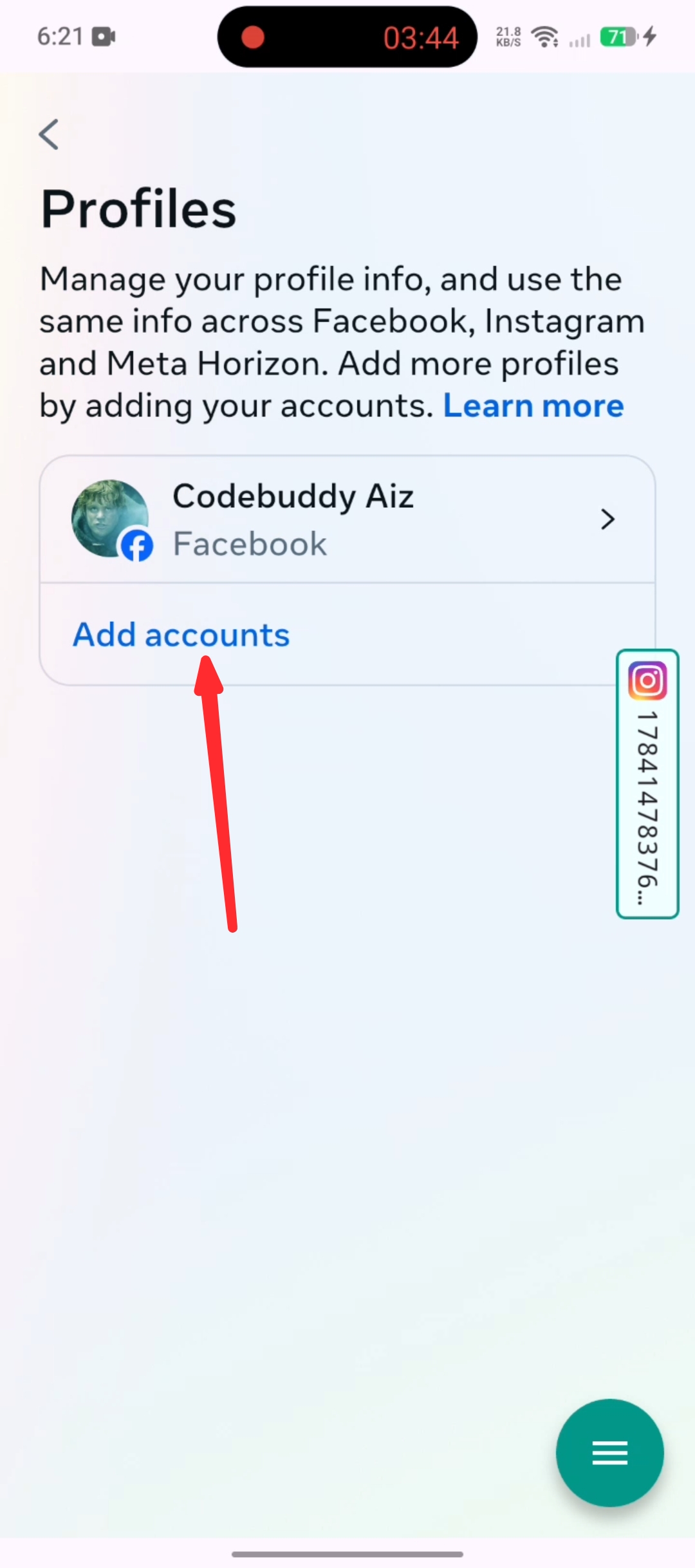
Step 11
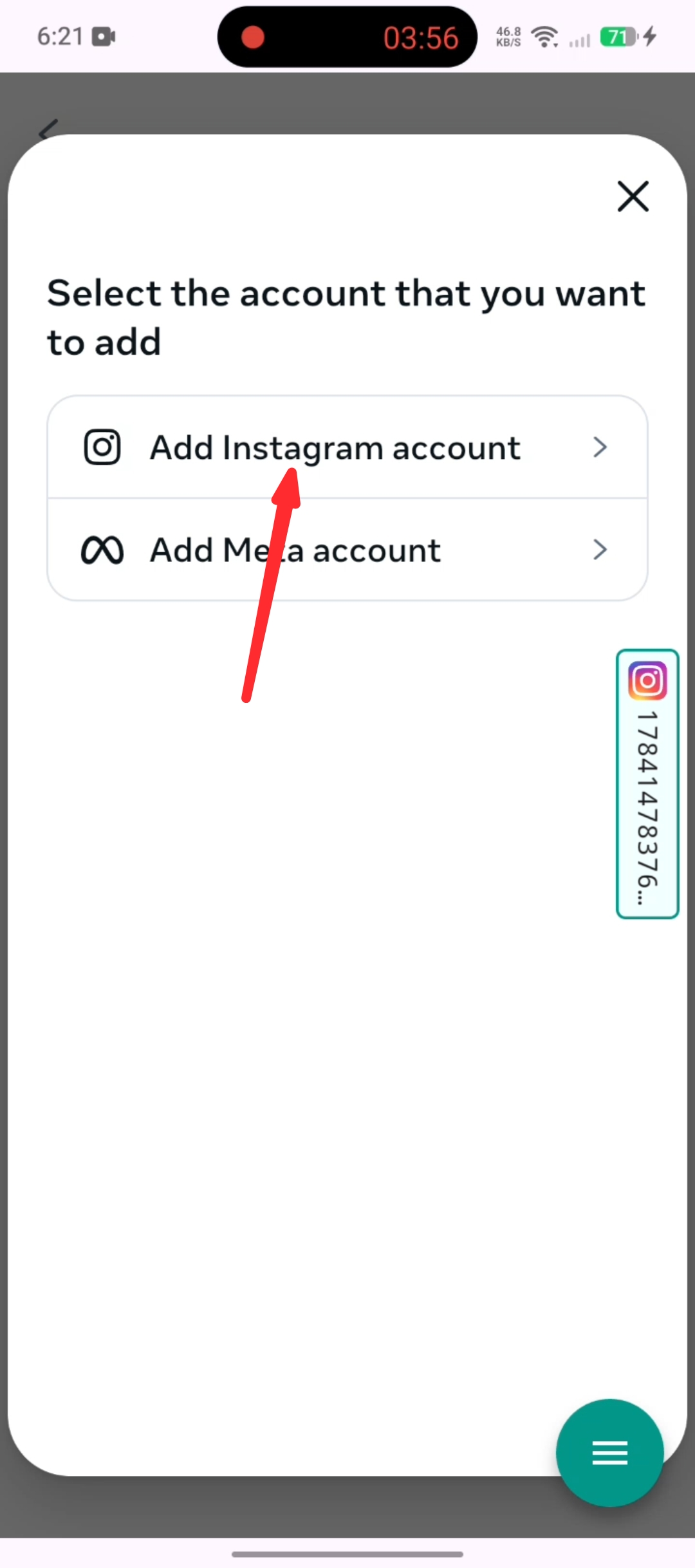
Click Add Instagram account
Step 12
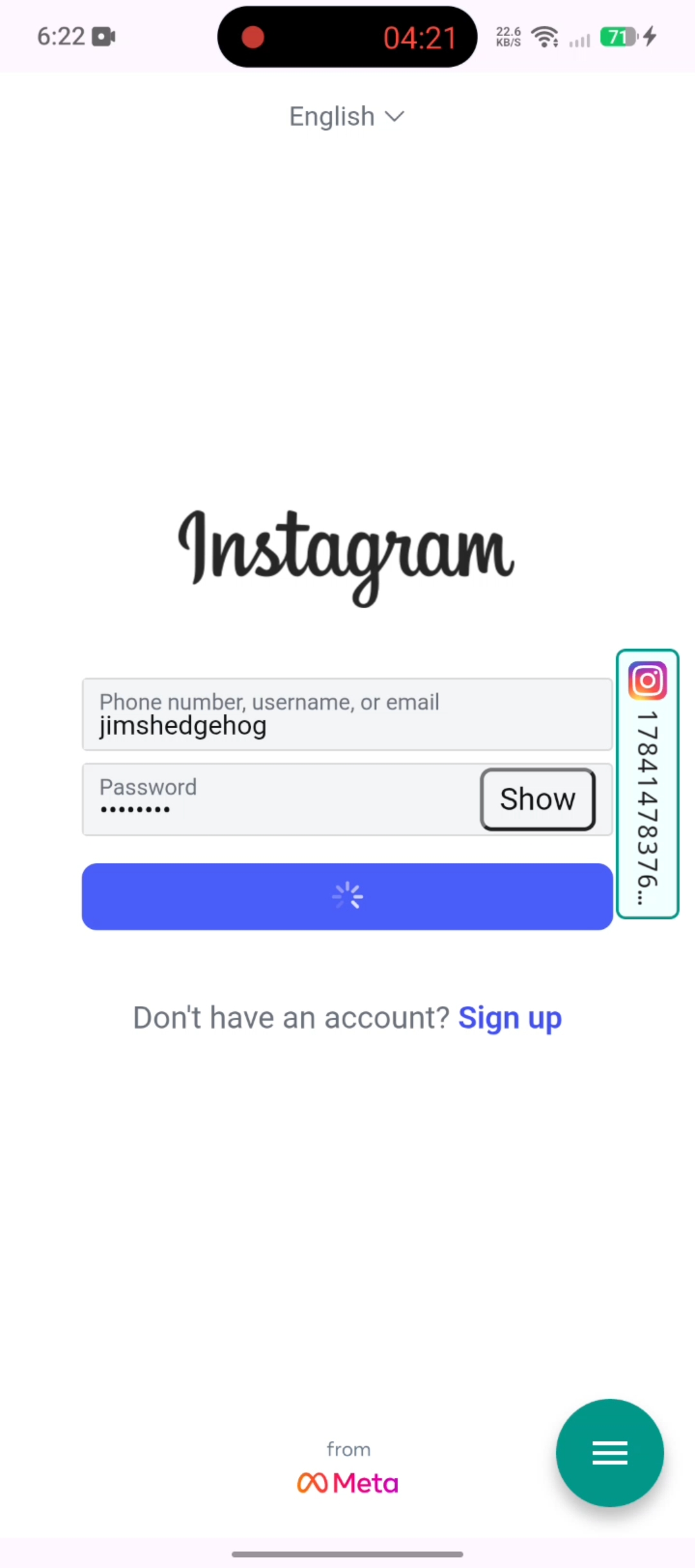
Login to your Instagram account that you've used in step 2
Step 13
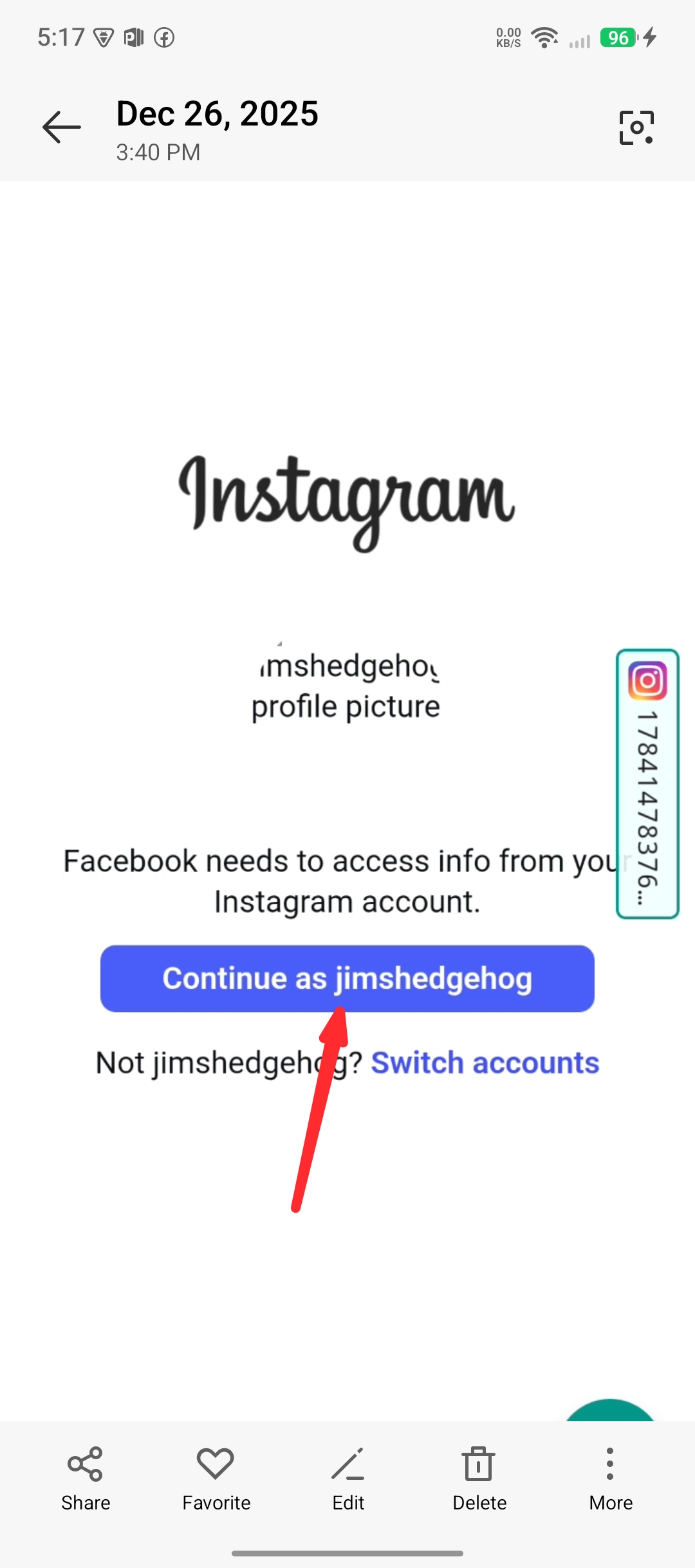
Click continue to as @yourusername
Step 14
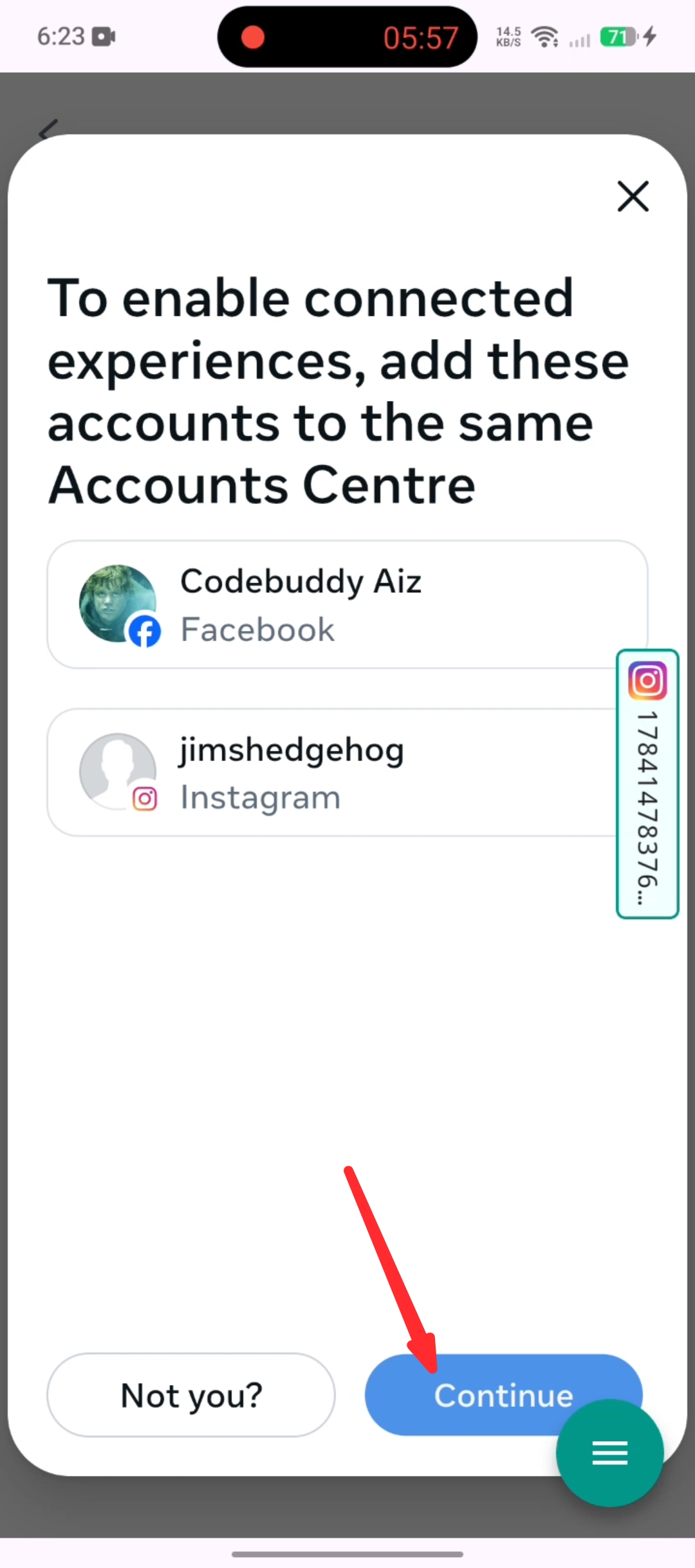
Click continue
Step 15
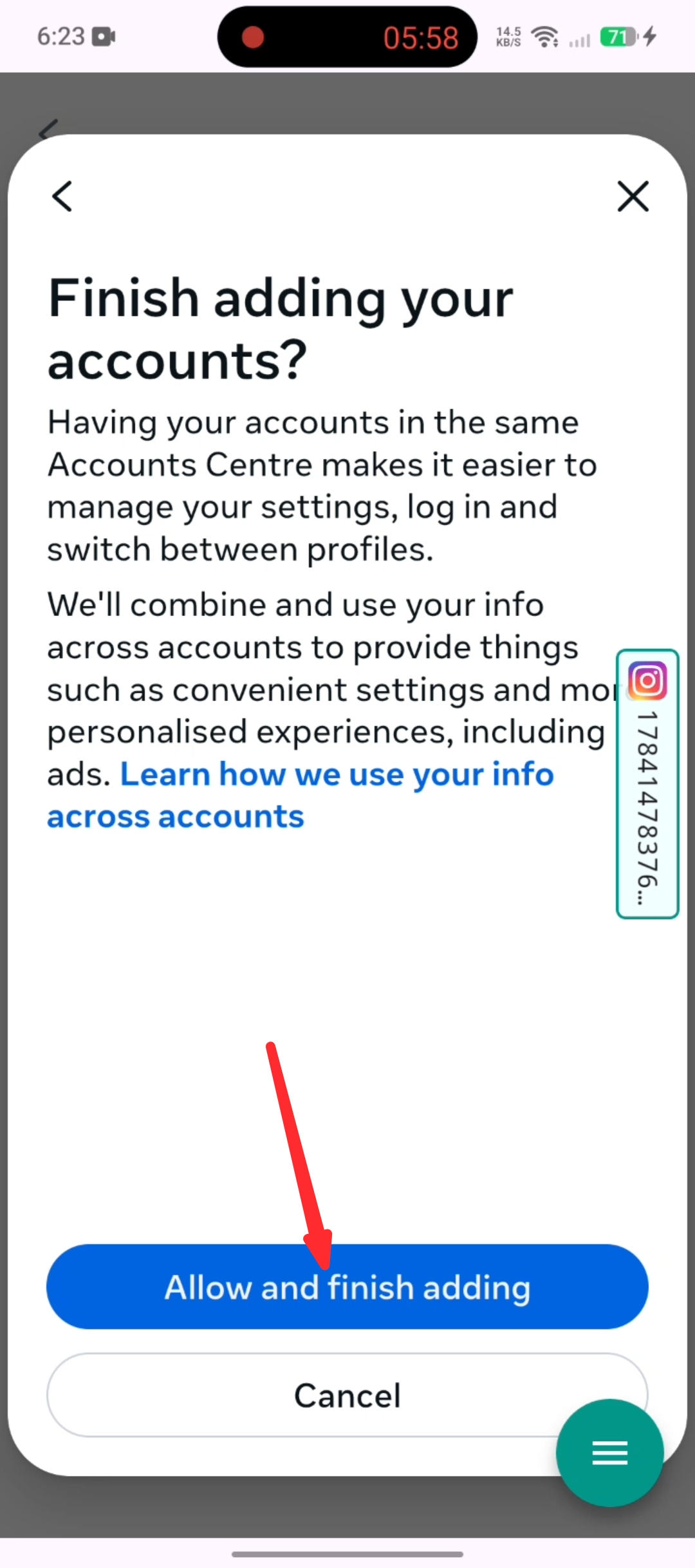
Click Allow and finish adding
Step 16
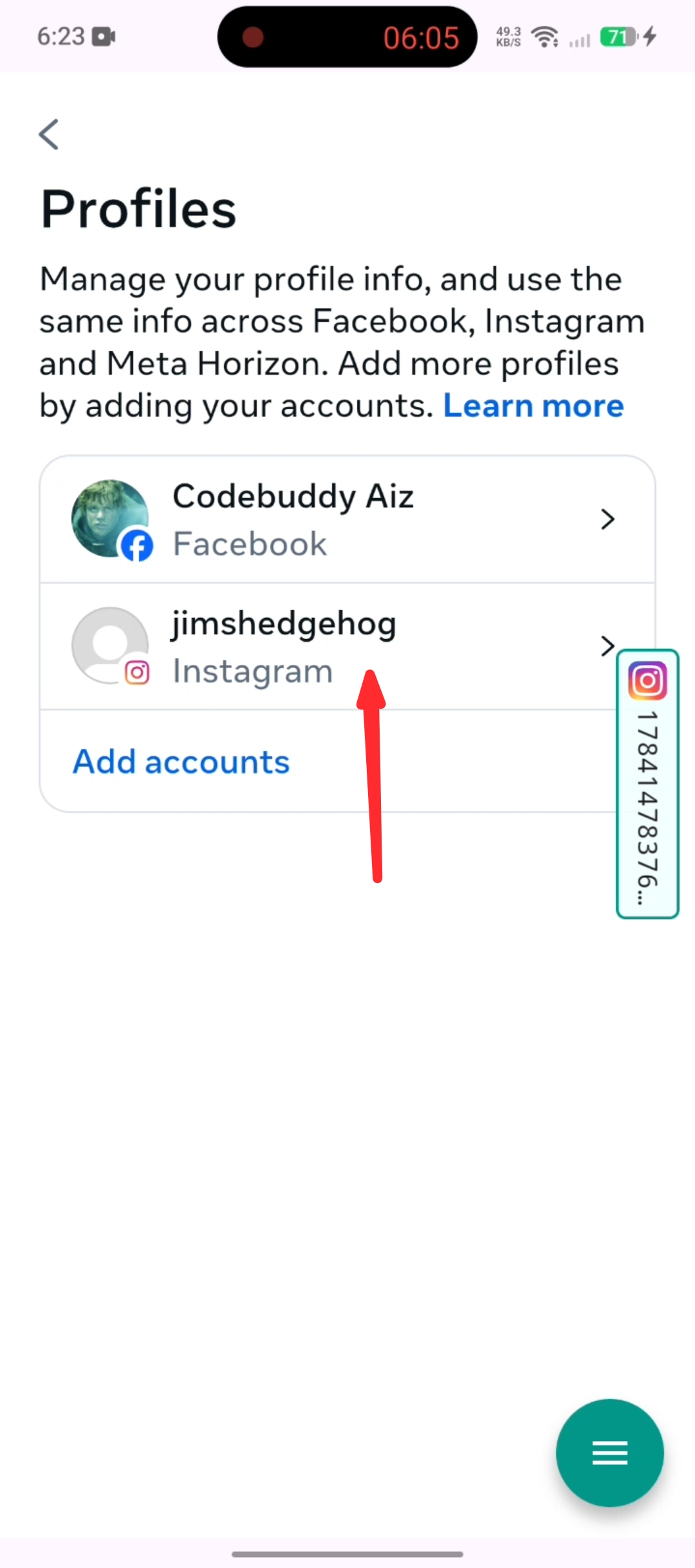
Now you should see your account added to the list. Click that account.
Step 17
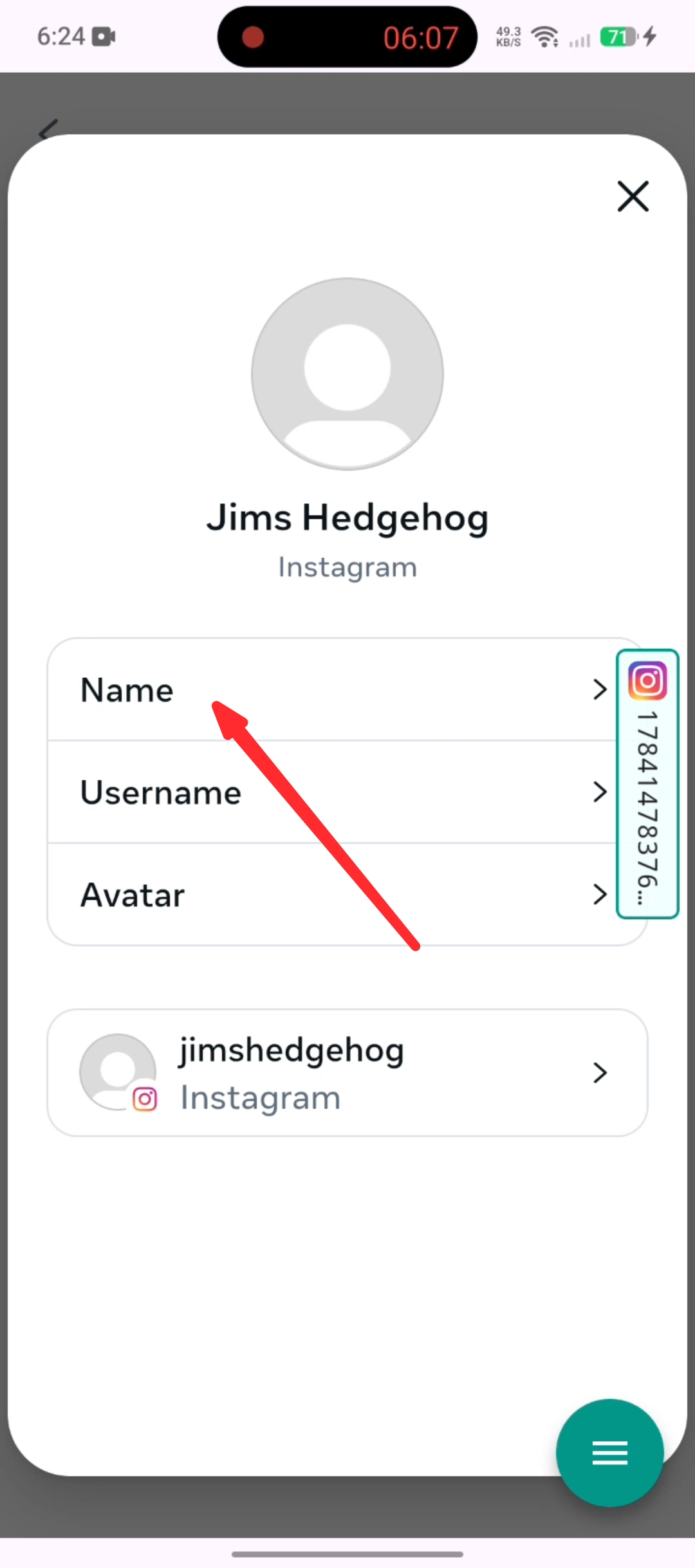
Click Name.
Step 18
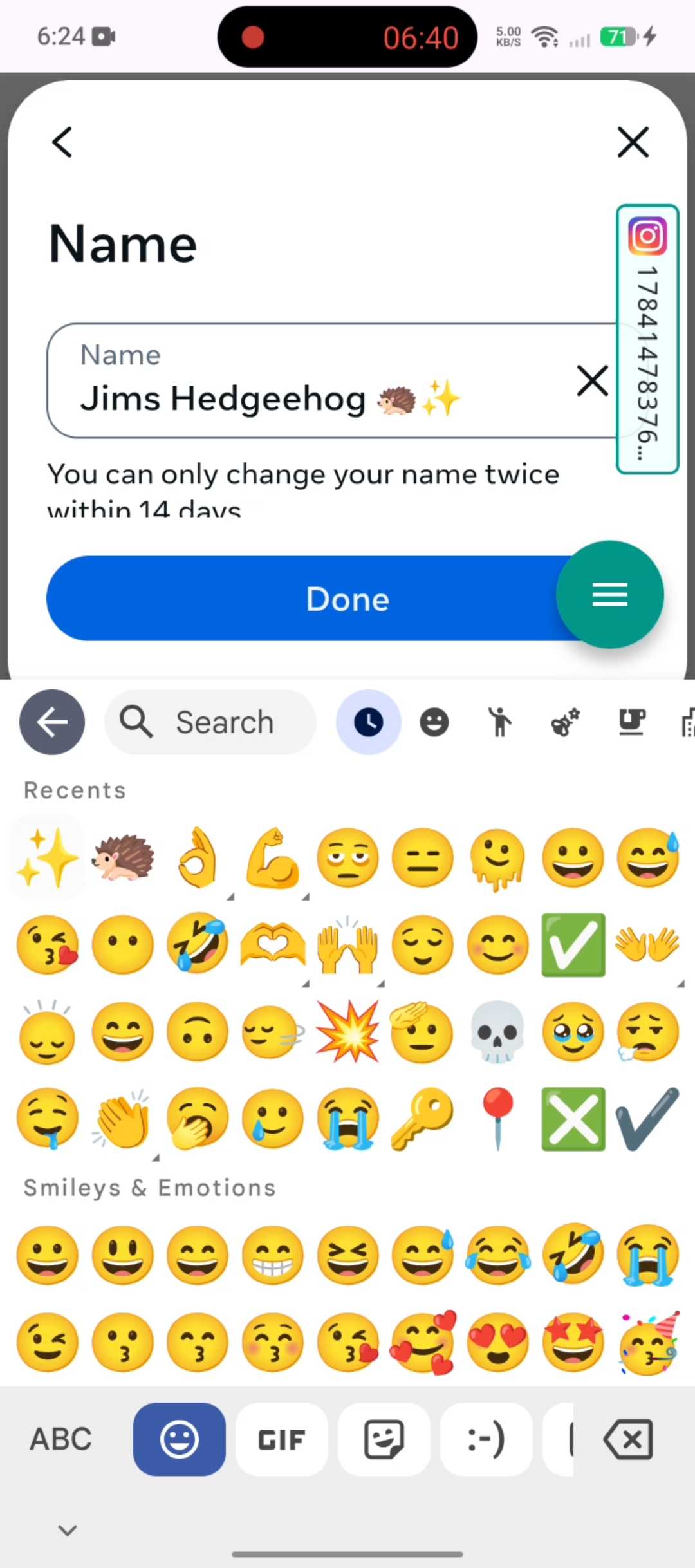
Add emoji to your name (e.g. 🤩 and make sure to put space in between your name and emoji). Click Save.
Step 19
Now for the important part. Click Change Name.
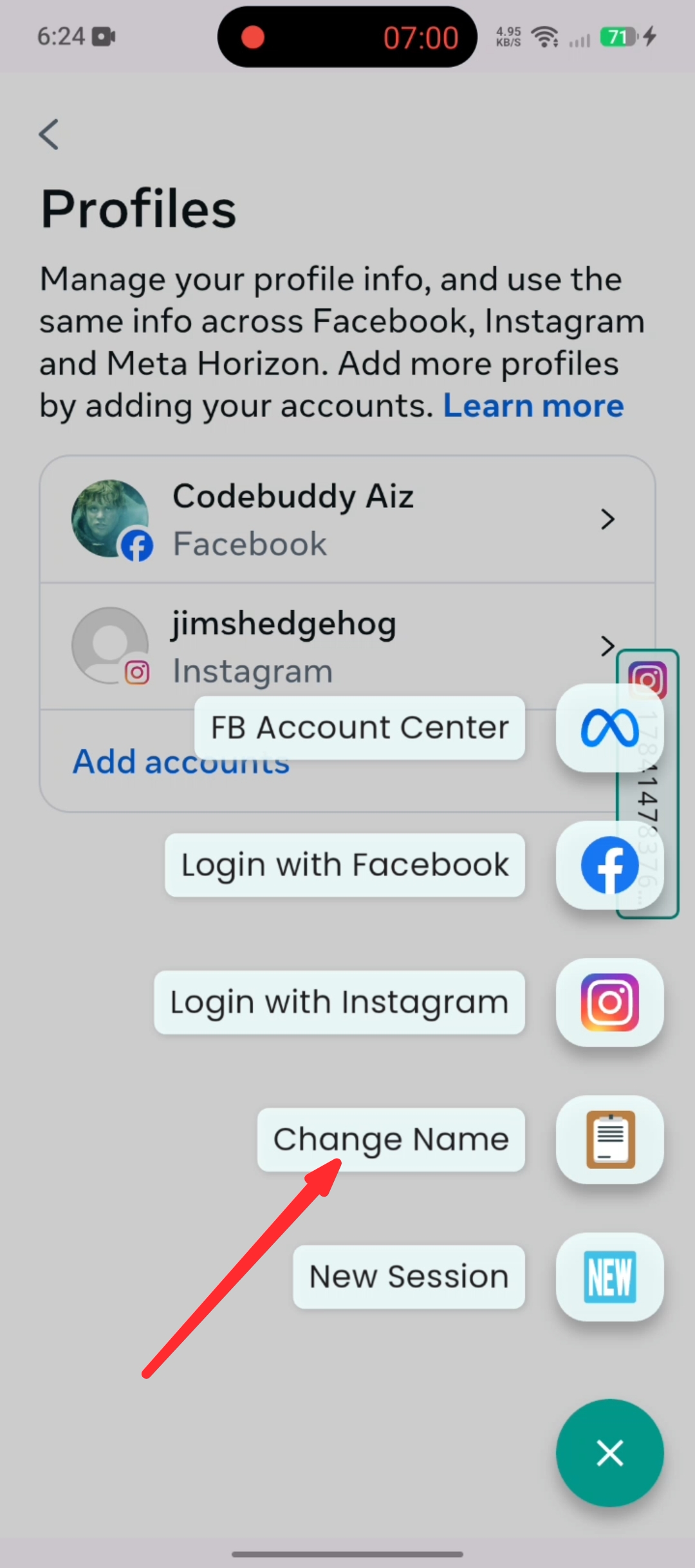
Step 20
A toast will appear to notify you that the name change script has been executed successfully regardless of the result either emoji successfully added or not.
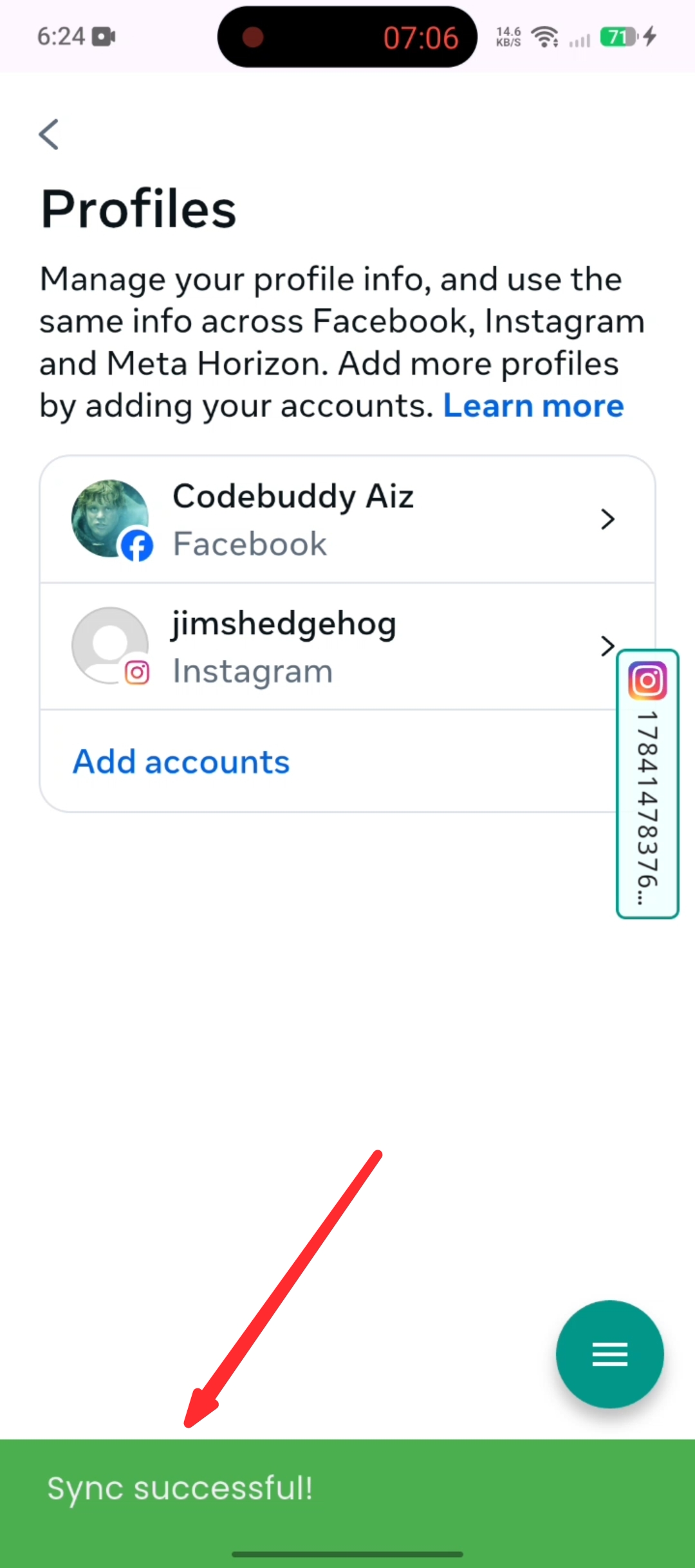
Step 21
Click the FB Account Center to refresh the page.
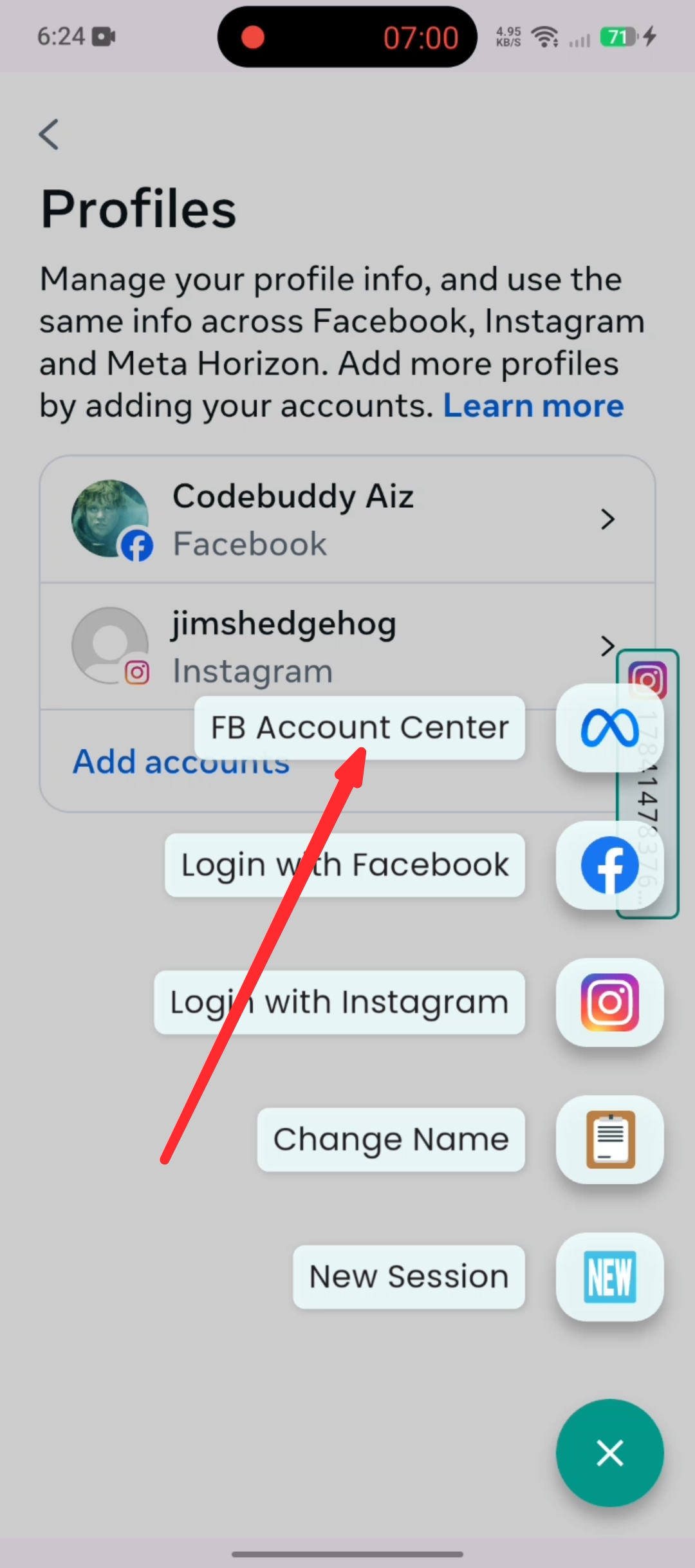
Step 22
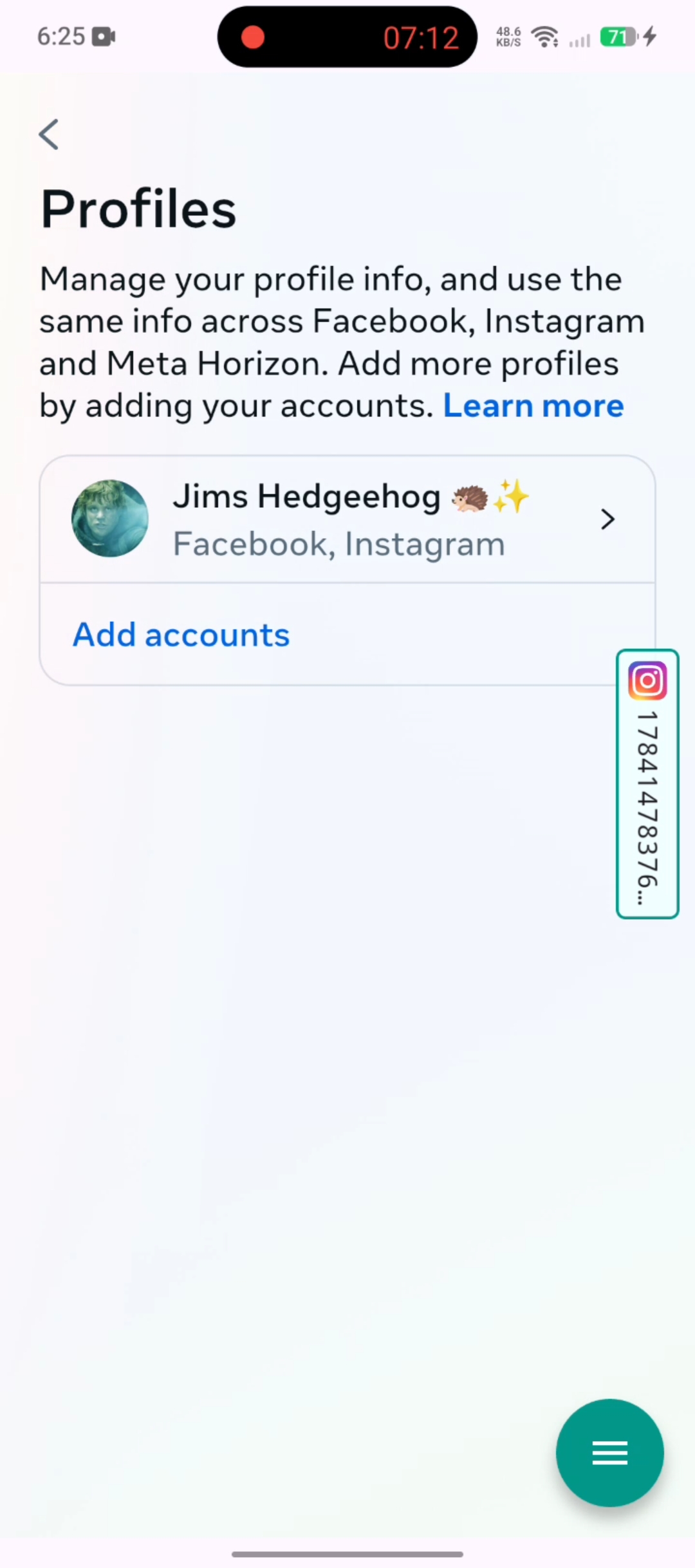
If you're seeing the same UI as shown below, it means the name change was successful.